How to transport table entries
Ever wanted to save entries after a transaction and then transport them to different servers? This tip from the SAP Developer Network shows you how.
Sometimes when we try to modify and save the data for some transactions, the system will not ask for a customizing request. But if we know which tables will be updated by those transactions, we can create one transportable request, save the entries and transport them to different servers.
This can be useful when the number of entries is not too overwhelming, say, less than 500.
I had seen some questions regarding the same and answered them, so now I am formatting my answer as a blog. The following procedure will take you through the process.
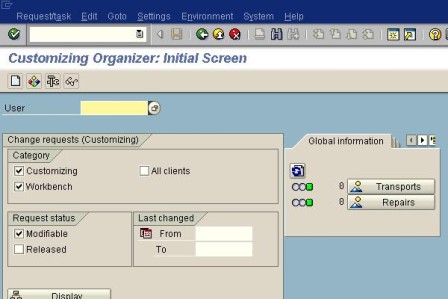
Go to Transaction SE10.
Give the userid and click on Display.
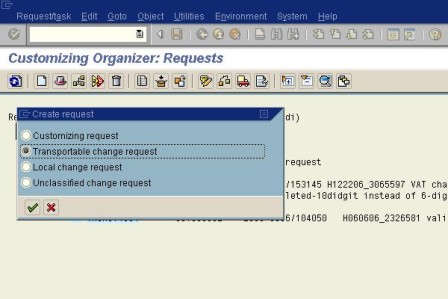
Click on the Create button and select the second radio button 'Transportable Change Request', which will create a new request.
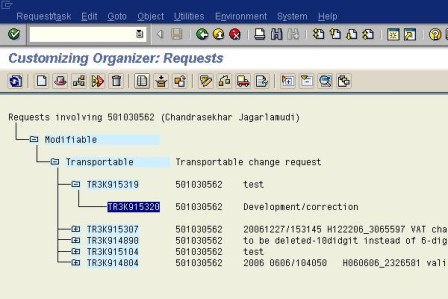
Now place the cursor on the task and click on the button 'Display object list', which is next to the Delete button.
Click on the Change button and then the Add button.
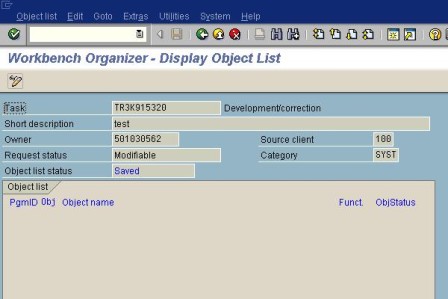
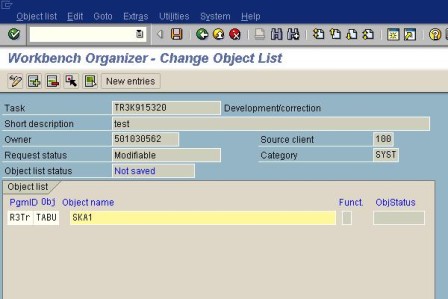
Give PgmId as R3TR
Obj as TABU
Objectname as Table to be transported
as shown below, and then double click on the table name, in this case SKA1.
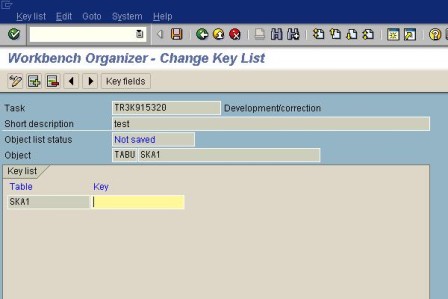
Double click on the Key field.
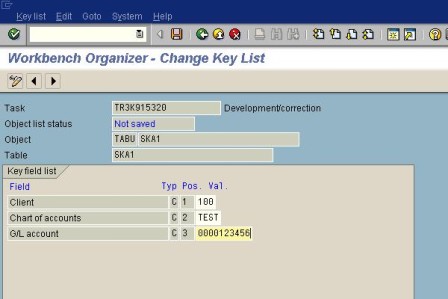
Fill in the details.
These are the key fields of that table which will transport the particular record.
Now click on back button then add(Plus button) to add more entries to be transported.
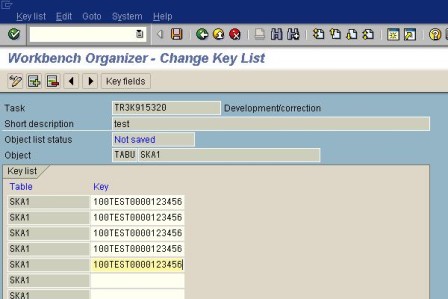
Again click on the Back button and add more tables and follow the same procedure for each table.
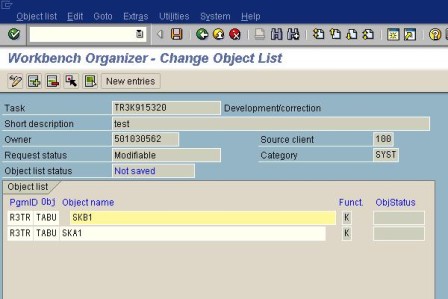
Finally, save the task, which is ready to be transported.
Chandrasekhar Jagarlamudi is a developer for Intelligroup
This content is reposted from the SAP Developer Network.
Copyright 2007, SAP Developer Network
SAP Developer Network (SDN) is an active online community where ABAP, Java, .NET, and other cutting-edge technologies converge to form a resource and collaboration channel for SAP developers, consultants, integrators, and business analysts. SDN hosts a technical library, expert blogs, exclusive downloads and code samples, an extensive eLearning catalog, and active, moderated discussion forums. SDN membership is free.
Want to read more from this author? Click here to read Chandrasekhar Jagarlamudi's Weblog. Click here to read more about ABAP on SDN.