
supplier relationship management (SRM)
What is supplier relationship management?
Supplier relationship management (SRM) is a systematic approach to evaluating and partnering with vendors that supply goods, materials and services to an organization, determining each supplier's contribution to success, and developing strategies to improve their performance.
Sometimes called supply chain relationship management, SRM helps to determine the value each supplier provides and which ones are most critical to business continuity and performance. Knowing each supplier's importance can help managers cultivate better relationships with suppliers.
One of the many disciplines of supply chain management, SRM is beneficial for supply chain professionals who regularly deal with suppliers in areas such as procurement, project management and operations.
SRM, depicted in Figure 1, is similar to vendor management and procurement processes, but there are key differences. Vendor management focuses on establishing costs and service-level agreements between the organization and its vendors; procurement focuses on the purchase itself (i.e., ordering, contracting, invoicing and paying).
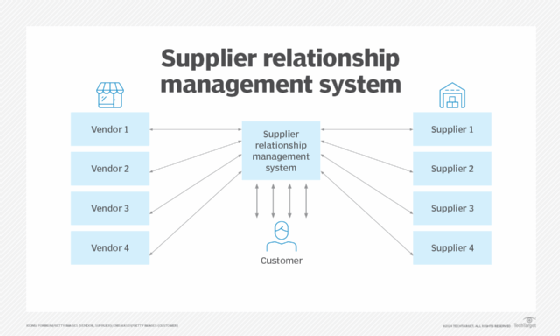
As shown in Figure 1, SRM can facilitate relationships with vendors and suppliers. The SRM system sometimes links to vendors to gather customer data for efficient planning and management. Suppliers may also interface directly with customers, using resources like email and voice communications. When both methods are used, efficiencies can be great and mutually beneficial.
Types of suppliers
Some suppliers are especially critical to a company's business continuity, operational excellence, scalability and profitability. For example, a smartphone manufacturer's stationery supplier has little influence on profitability, but its main electronics supplier has a huge impact, making it a key strategic partner. Any risk to the electronics maker's operations is a major concern to the smartphone company.
SRM can be useful for any of these six types of supplier relationships:
- Arms-length. Transaction-based, with a specific need being fulfilled, and no expectations for further activity.
- Partnership. Focused relationship with a vendor -- to the exclusion of other vendors or a reduced level of activity with them.
- Just in time. Seeks delivery of goods in a specific time frame as part of inventory management and with a view toward reducing excess inventory.
- Strategic alliance. Deep long-term relationship in which vendor and customer have close operational and planning links.
- Buyer/supplier networks. Collaborative relationships among multiple vendors and buyers where information is shared to help all members.
- Outsourcing/subcontracting. The process of contracting out work to external organizations that have the skills to complete the projects and can help find resources and expertise that might not be available internally.
Goals and benefits of SRM
While the types of suppliers that are key to success vary by industry and organization, the overarching goal of SRM remains the same: to streamline and improve the processes that take place between the organization as buyer of products and services and the businesses that supply them. This is similar to the way customer relationship management (CRM) is intended to streamline and improve the processes between an enterprise and its customers.
As buyer-supplier networks become more global and interdependent and companies rely more heavily on strategic suppliers, SRM is increasingly important. Many organizations worldwide have implemented SRM programs, noting that the discipline helps them to do the following:
- Take better advantage of supplier capabilities.
- Reduce costs.
- Ensure supply chain continuity.
- Limit supply chain risks.
- Increase responsiveness of suppliers.
- Gain visibility into future prices and hedge against price volatility.
SRM aims to develop a mutually beneficial relationship between the organization and its suppliers, especially those deemed most strategic to the organization's brand. It creates a framework for both identifying strategic supply partners and organizing the relationship lifecycle and is meant to promote quality, efficiency and innovation. A successful SRM discipline seeks not just cost savings, but to maximize the value of suppliers to gain a competitive advantage and improved brand presence.
Applied properly, SRM practices create a common frame of reference to enable effective communication between an enterprise and suppliers and measure supplier performance.
How SRM helped the USPS
When the United States Postal Service (USPS) decided to update its SRM governance model in 2018, its SRM was already considered mature. The USPS streamlined its supplier rating system from nine to four standard metrics for timeliness, quality, cost and innovation. These apply to every supplier. Relationship managers assigned to individual suppliers have flexibility, however, to add optional metrics for factors such as corporate social responsibility or the quality of specific product categories like software. Suppliers have input into the SRM process through several mechanisms, including membership on a supplier council.
Tasks of supplier relationship management
To achieve its goals, an organization's SRM program must be strategic in approach -- articulating objectives and devising a plan before addressing suppliers -- rather than being reactive and engaging suppliers on an ad hoc basis or in response to particular issues.
Enterprise leaders who take a strategic, proactive approach might determine that long-term engagements with specific suppliers are preferable to ensure continuity of supplies, while short-term relationships with other suppliers can best ensure business agility, flexible pricing and alternate sources if primary suppliers cannot perform as expected.
An effective SRM strategy also requires cultivating personal relationships with suppliers and working to build trust and mutually beneficial partnerships. That could mean involving them in planning for key initiatives or developing innovations jointly.
Senior company management and business leaders involved in SRM must align everyone with SRM program goals and ensure compliance with its objectives. They should be able to determine the SRM program's value.
How supplier relationship management works
Strategic sourcing processes related to SRM can vary by organization, but SRM involves the three steps shown in Figure 2.
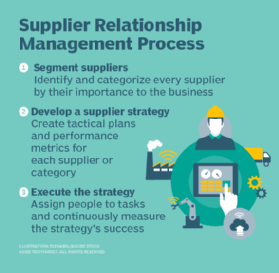
- Segment suppliers. In this first, foundational step, the organization identifies all its suppliers and categorizes them by their importance to the business, ensuring suppliers key to success get appropriate attention.
- Develop a supplier management strategy and framework. Here, the organization develops a strategic plan for how SRM will work with each supplier or category of suppliers. While all suppliers play a role in success, organizations should start with the category of suppliers deemed most critical. Aligning business strategy processes and assigning stakeholders according to business goals requires a strategic approach and supporting framework that addresses governance and performance management.
- Establish or update vendor relationships. This step involves communicating SRM plans, strategies and initiatives with key suppliers. It can help advance relationships and provide valuable insights into what will ensure mutual success.
- Execute the SRM strategy. The executives who have responsibility for SRM must ensure the strategy is implemented and that they or designated managers take on daily oversight. They should devise ways to monitor progress and identify potential points of failure in the SRM strategy or its execution.
Supplier relationship management challenges
In the years since the COVID-19 pandemic, the importance of achieving resilience in supply chains has surfaced often. This highlights the importance of having a solid SRM program that can overcome the many challenges of achieving that objective, such as the following:
- Lack of senior management support and endorsement of SRM.
- Failure to focus on the risks and threats to SRM.
- Overemphasis on using SRM to reduce cost rather than cultivate value and strategic ties.
- Not knowing how to use artificial intelligence (AI) and related technologies to improve supplier identification and the SRM experience.
- Lack of visibility into suppliers, their importance to the organization and the value they can deliver.
- Insufficient commitment to developing clear program objectives, assigning and training staff to run it, and aligning business units to the objectives.
Supplier relationship management software
SRM software offers numerous functions that enable a strong supplier management operation:
- Contact and communication management.
- Invoices and requisitions.
- Order histories.
- Scheduling.
- Performance analytics.
- Procurement intelligence, including supplier risk management.
- Product lifecycle management, such as portfolio strategy management.
- Sourcing.
- Supplier data management, including validating supplier requests.
- Supplier performance management.
- Contract management.
- Catalog management.
- Operational procurement, such as processing purchase orders.
- External resources such as product specifications.
SRM software vendors include SAP Ariba, Blue Yonder (formerly JDA Software), GEP Software, Intelex Technologies, Oracle, Epicor Software, Iasta, Zycus, Neocase Software, Taulia and Whiztec.
Integration of SRM with related systems
SRM systems are often linked with other systems that support an organization's business operations. Figure 3 shows how various systems may be linked.
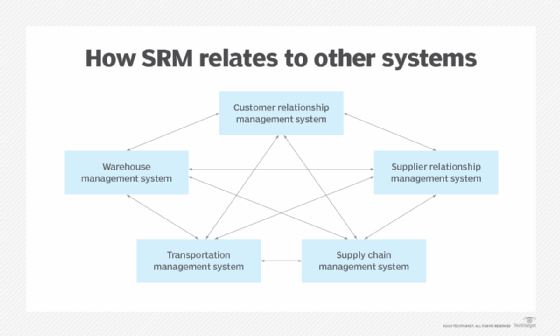
Some CRM platforms may embed modules addressing supply chains, transportation and warehouse management, and SRM. Some older legacy systems may be standalone, but the likelihood today is for links among the various applications in a common platform. The various modules can share a common database, and actions taken in one module can initiate actions in one or more other modules. The result for customers is a more efficient experience with minimal bouncing around among different apps.
Supplier relationship management and AI
Use of AI and machine learning is likely to increase with newer releases of the various platforms available. Adding AI capabilities can mean faster results, improved management and performance data, more effective customer management strategies and a better overall user experience.
Learn about top challenges of supplier relationship management and explore 8 key supplier relationship management strategies.